Introduction to Ospi
Ospi offers solutions for integrating high-quality video/voice calls into your web, mobile, and desktop applications. The platform provides APIs and SDKs to capture, distribute, record, and render high quality audio and video applications.
Supported Platforms
Ospi currently supports the following platforms:
- Mobile: Flutter, Android (Java/Kotlin), iOS (Objective-C/Swift), React Native
- Web: Javascript Core SDK + UI Kit for React JS, Angular, and Web Components for other frameworks.
- Desktop: Electron
Components of Ospi
-
Backend HTTP REST APIs: Your backend uses Ospi REST APIs to perform actions such as, create meetings, add participants to a meeting etc.
-
Frontend SDKs: Your applications bundle Ospi Core SDKs (and UI Kits) to acquire, transmit and play media, and manage network connections.
- Core SDKs: These SDKs empower you to create custom video and voice calls with real-time communication. They are highly customizable and easy to integrate.
- UI Kit: By utilizing Ospi's prebuilt design library of UI components, you can seamlessly integrate video and voice calls into your app or website within minutes.
-
Developer Portal: The Developer Portal serves as a comprehensive platform, offering access to meeting logs, API key management, billing operations, and various other functionalities in one place.
Getting Started With Ospi
This topic gives a quick walkthrough of the steps involved in integrating high-quality real-time communication features into your app using Ospi.
Integrate Ospi
-
To get started with Ospi, you must first register in the Developer portal
-
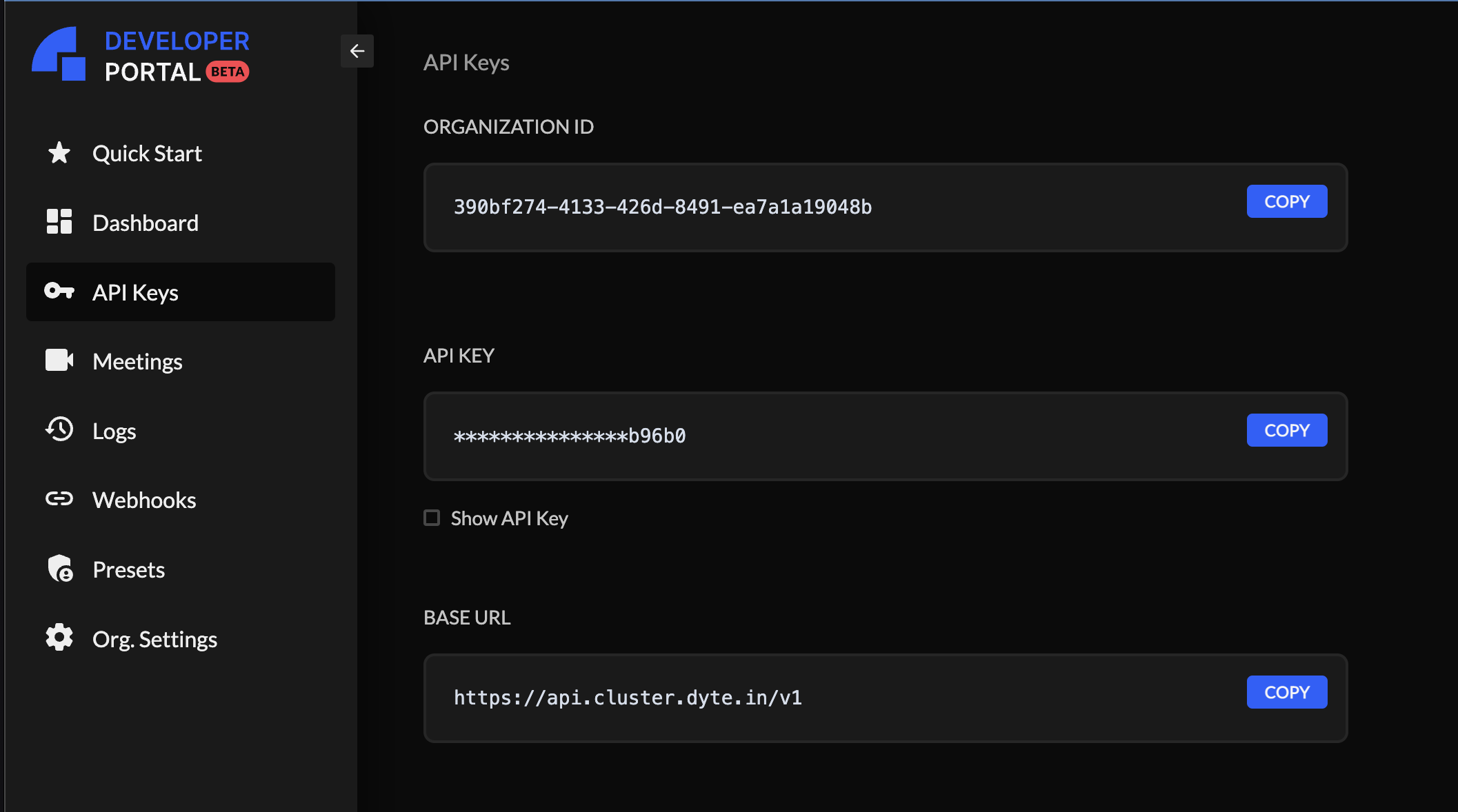
Copy the API Keys for your organization from the Developer portal. These API Keys are unique to your organization and are required to use Ospi REST APIs such as when instantiating a meeting
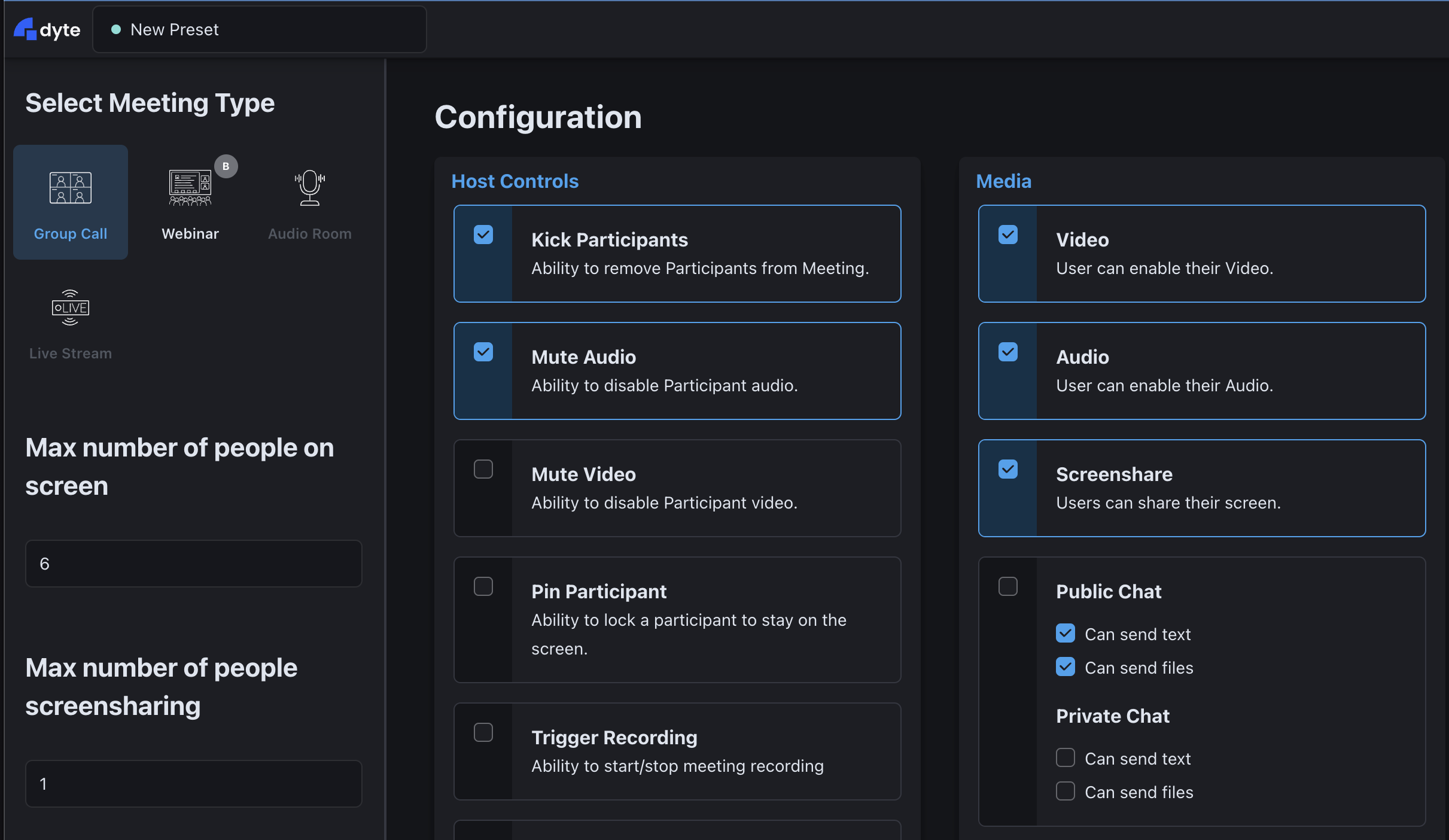
- Create presets using the Developer portal. A preset is a set of permissions and UI configurations that would be applied to a participant
- Create a Ospi meeting using the
Create Meeting API. This API returns a
unique identifier for your meeting.
You may want to persist the meeting ID in your database.
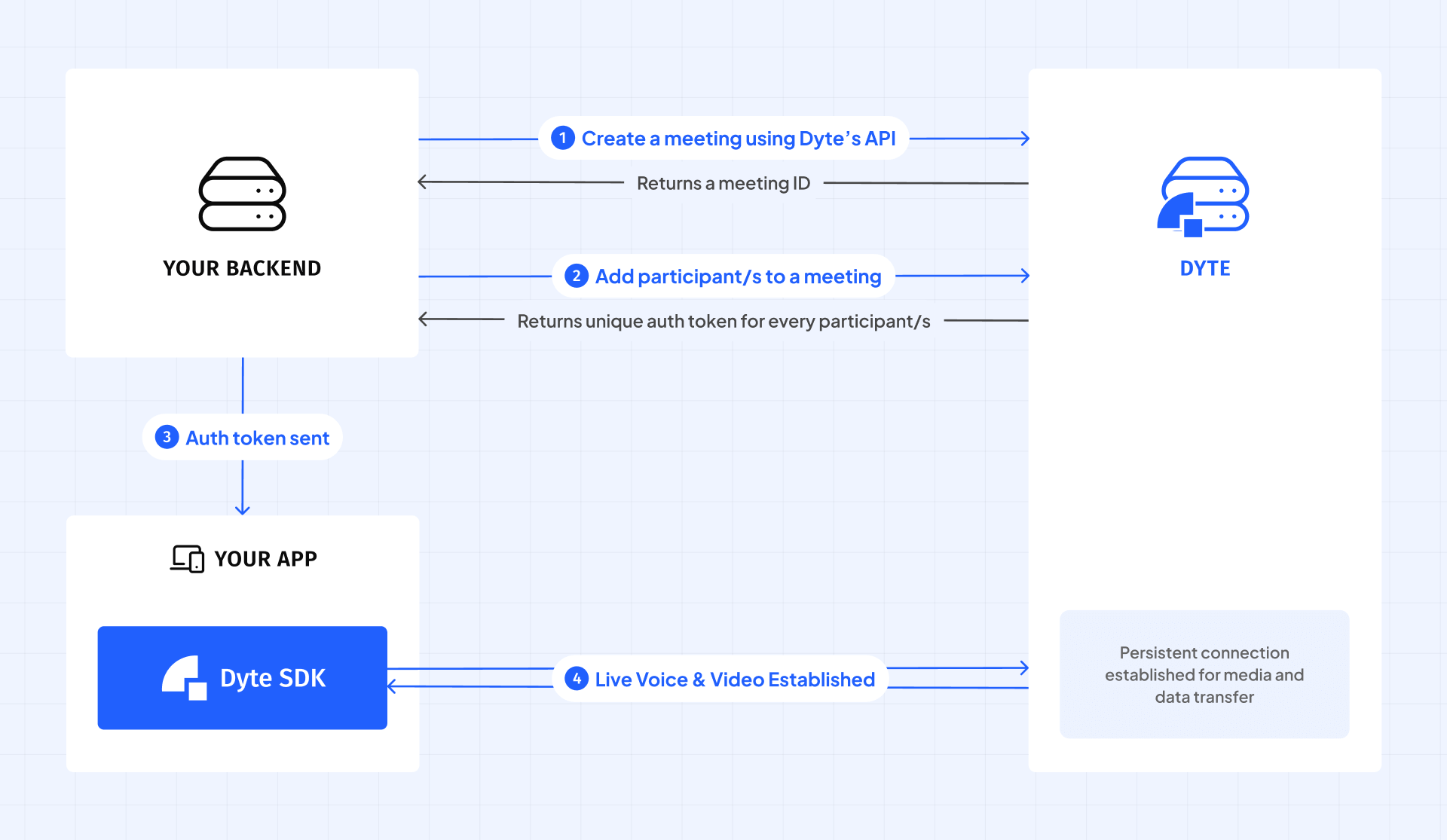 Diagram explaining how Ospi works
-
After you've created the meeting, add each participant to the meeting using the Add Participant API (The
presetNamecreated earlier must be passed in the body of the Add Participant API request)The API response contains the user authentication token
authToken. -
Use the
authTokento initialize any of the frontend SDKs.
Ospi meetings do not have a date or time associated with them, so you can create
them in advance or just when users need to join the meeting. The idea is that
your backend controls when to distribute authToken and thus you can share the
tokens with the users at the scheduled time.
Glossary
Meeting
A communication channel created on Ospi is termed as a meeting.
Participants
Anyone who joins the meeting, whether as an actual user or a machine user
Permission
A specific action allowed or not for a participant.
Preset
A preset is a set of permissions and UI configurations that are applied to participants. The presets define how the meeting will look, feel, and behave for the participants.
- You can create presets for the Group Call and Webinar meeting type.
- You can set the maximum number of people on screen, the maximum number of
people sharing the screen, provide permissions to create poll, disable
participant video, disable participant audio, modify text color, configure
plugins, and so on. Ospi also includes the following four prebuilt presets.
These presets are pre-defined permissions and UI configurations for the
participants.
- webinar_viewer
- webinar_presenter
- group_call_host
- group_call_participant
You can choose to use the default prebuild presets if you don't wish to create one.
Recording
You can record the meeting, and get a video / audio file.
Livestreaming
You can livestream the meeting to other streaming platforms that support RTMP,
like YouTube, Twitch, etc.
Analytics
Get analytics data around your meetings, like number of minutes, number of
recorded minutes, number of participants, etc.